
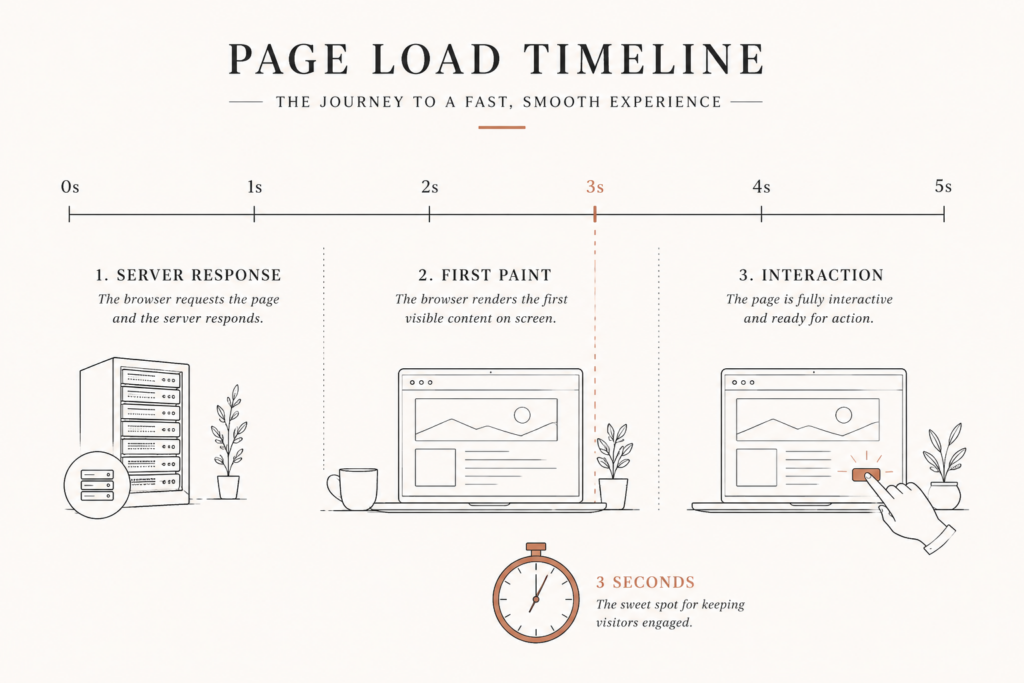
Picture this: you install a caching plugin, flip on every toggle it offers, run PageSpeed Insights, and watch the score climb from 41 to 78. You feel good for a week. Then a client emails asking why the site still feels sluggish on their phone, and a fresh test on mobile shows LCP creeping past four seconds again. The score moved. The site did not.
Here is the thing. Most WordPress speed optimization advice treats the score as the goal. That is backwards. The score is a symptom. The real question is where the time actually goes, and for most WordPress sites the answer is boring: the server is slow to respond, the biggest image loads late, and a pile of scripts blocks the main thread while the visitor waits.
One of the most common conversations at Javaid Ahmad starts with a founder who has already bought three optimization plugins and is confused why the site is still slow. The plugins were never the problem. They were also never the fix.
This article covers the full picture: why speed is a revenue line and not a vanity metric, the three numbers that actually decide whether your site feels fast, how to diagnose the real bottleneck instead of guessing, and a source-first sequence for fixing WordPress performance that holds up after you close the tab.
Why WordPress speed optimization is a revenue problem, not a technical one
Slow sites do not just annoy people. They quietly bleed money, and the numbers are not subtle.
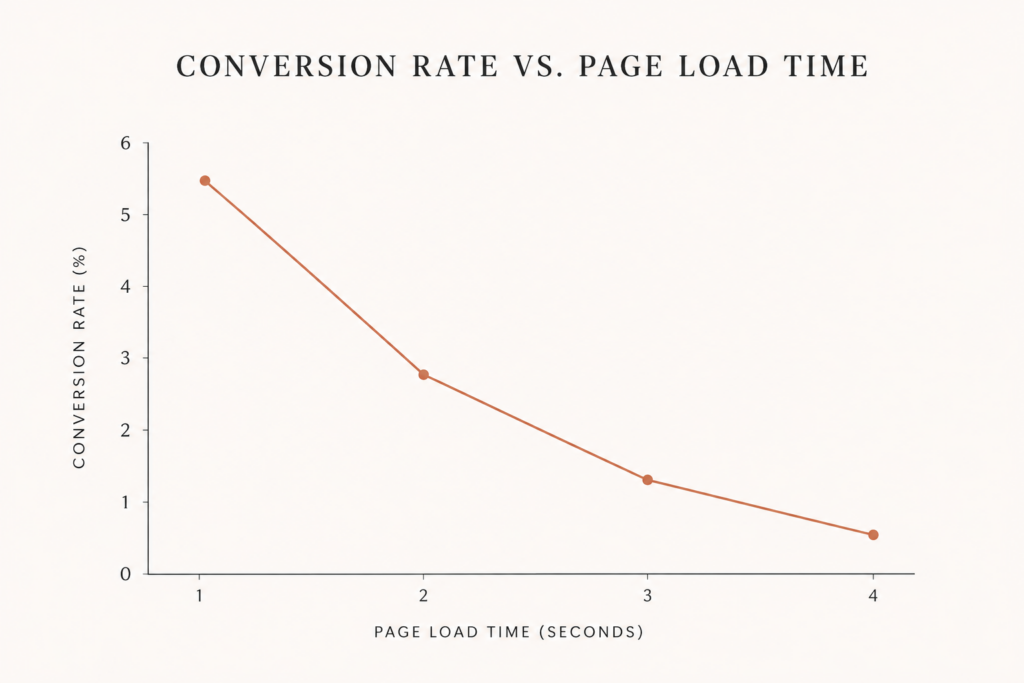
Every 100 milliseconds of load time costs roughly 1 percent in conversions, and documented page-speed data for 2026 puts it plainly: for a site doing $10 million a year, a 500ms improvement is worth around $500,000 in recovered revenue. That is not overhead. It is a sales tool you already own and have not turned on.
The abandonment curve is just as sharp. Industry benchmarks suggest that 53 percent of mobile visits are abandoned when a page takes longer than three seconds, and moving from a one-second to a three-second load lifts bounce rate by about 32 percent. Conversion rates tell the same story from the other side: pages that load in one second convert at roughly 40 percent, dropping to 29 percent by the third second.
And it gets worse for WordPress specifically. Across the web, only about 55.9 percent of origins pass all three Core Web Vitals in recent CrUX field data, and WordPress sits below that average at roughly 38 percent passing. The gap is not random. It is structural, and it is fixable once you know where to look.
The three numbers that decide whether your site feels fast
Forget the single PageSpeed score for a moment. In 2026, Google measures real users against three thresholds, and passing means clearing all three, not averaging them out.
- LCP (Largest Contentful Paint): how long until the main content, usually a hero image or headline, is visible. Target under 2.5 seconds.
- INP (Interaction to Next Paint): how quickly the page responds when someone taps or clicks. Target under 200 milliseconds.
- CLS (Cumulative Layout Shift): how much the layout jumps around while loading. Target under 0.1.
Here is the part most guides skip. WordPress does not fail all three equally. According to field data compiled for the 2026 CrUX picture, WordPress actually passes INP at around 85.9 percent, which is close to the web average. Its real weakness is LCP, and slow LCP is almost always driven by a slow TTFB, the time your server takes to send the first byte.
So the diagnosis is usually this: WordPress speed optimization is not an interactivity problem. It is a server-response and render problem wearing an interactivity costume. That matters, because it tells you where to spend your first hour.
INP still deserves respect, though. Across the whole web, INP is now the most commonly failed vital, with roughly 43 percent of sites failing it, and heavy page builders or bloated theme scripts can pull even a well-hosted WordPress site under. I wrote about the same shift on the commerce side in the note on getting a store under three seconds where INP is the metric that now matters, and the principle carries straight over to WordPress.
Diagnose before you install anything
The most expensive mistake in WordPress performance is fixing the wrong layer. Someone buys a rendering plugin to solve a hosting problem. Nothing improves. Then they blame the plugin.
Start with a diagnosis, not a purchase. Run the site through PageSpeed Insights and read the field data, the real-user numbers at the top, not just the lab score. Then look at one specific line: server response time, which is your TTFB.
The rule of thumb is clean. A TTFB under 200 milliseconds is healthy. Anything consistently above 600 milliseconds is a hosting or caching problem, not a theme problem, and guidance on fixing high WordPress TTFB says the same. If your server is slow to answer, no amount of image compression will save you, because the browser is still standing at the door waiting to be let in.
Next, check what the LCP element actually is. Seven times out of ten it is an image, and the two most common failures are that the image is enormous or that it got lazy-loaded when it should have loaded first. Then open the coverage panel in Chrome DevTools and see how much CSS and JavaScript loads that the page never uses. That unused weight is your INP tax.
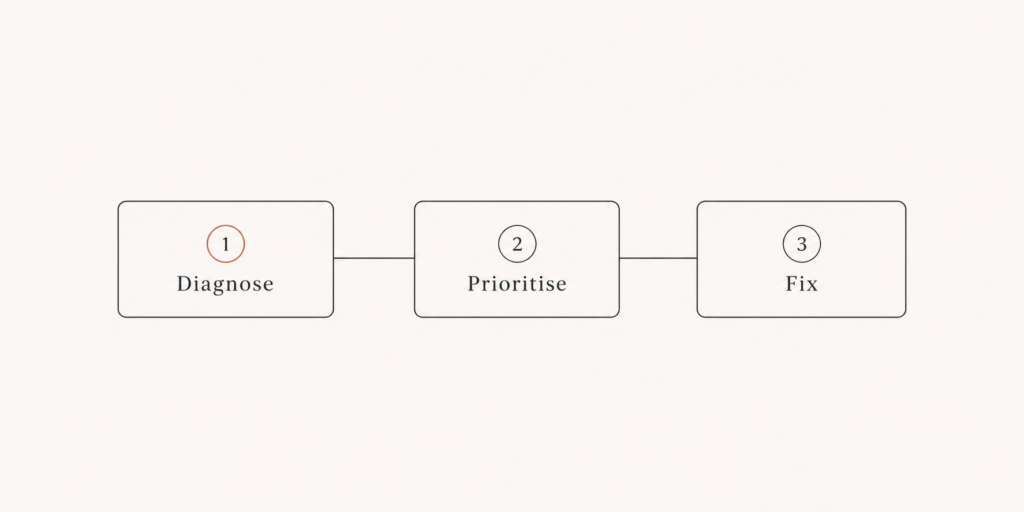
Only after you know your TTFB, your LCP element, and your script load should you touch a single setting. Diagnose, then fix. Not the other way around. This step takes fifteen minutes and saves you from spending a weekend optimizing the one layer that was already fine.
A quick word on lab scores versus field data. The number PageSpeed Insights shows at the bottom, the lab score, is a simulation on a throttled connection. The numbers at the top, the field data, are what real visitors on real devices experienced over the last month. When the two disagree, trust the field data. That is the version Google uses, and it is the version your customers actually feel.
The source-first fix sequence
Once you know where the time goes, the order of operations matters more than any single tool. Fix the foundation first, then the render, then the interactivity. Here is the sequence I use on client sites, from highest leverage to lowest.
1. Fix the host before anything else. If your TTFB is above 600ms on cached pages, your host is the ceiling. Managed WordPress environments on NVMe storage running PHP 8.3 with OPcache consistently deliver TTFB under 200ms on the same install, per comparisons of WordPress server stacks. This is the single change that moves the most, and it is the one people avoid because switching hosts feels like surgery. It usually is not.
2. Add one real caching stack, not three overlapping plugins. A properly configured cache can cut load time by 40 to 60 percent. You want page caching plus an object cache like Redis plus a CDN, all playing together. LiteSpeed Cache is the strongest free option if your host runs LiteSpeed servers; WP Rocket is worth the fee if you would rather not tune anything by hand, according to current caching-plugin guidance. Pick one. Running two page-cache plugins at once is how sites break.
3. Put a CDN in front. Cloudflare or a similar edge network serves your assets and cached pages from locations near the visitor, which trims latency on every request and takes load off your origin. This also pairs well with WordPress speculative loading, the preload-on-hover feature, which can otherwise add server strain if every guessed page hits raw PHP.
4. Fix the LCP image properly. Convert your hero and above-the-fold images to WebP or AVIF, size them correctly with a responsive srcset, and, this is the part people miss, exclude the LCP image from lazy loading and add fetchpriority="high". WordPress tries to do this automatically since version 6.3, but as the LCP field guides note, it often misses when you use page builders like Elementor or Divi. Verify it by hand.
5. Cut the script weight. Removing non-essential JavaScript is the highest-leverage render fix in 2026. Defer non-critical JS, inline critical CSS, and delete plugins that load scripts on every page for a feature you use on one. Every script you remove is INP you get back for free.
6. Clean the database. Post revisions, expired transients, and bloated autoloaded options quietly slow every dynamic query. A monthly cleanup keeps the foundation honest.
There is a pattern hiding in that list. The biggest wins are at the bottom of the stack, the host and the cache, and the smallest wins are at the top, the tweaks everyone reaches for first. That is exactly why so many WordPress speed optimization efforts stall. People start at the shallow end.
When plugins stop helping and a developer starts
There is a point where stacking plugins turns into its own performance problem. Each optimization plugin loads its own scripts, writes its own database entries, and occasionally fights the next one for control of the same asset. I have audited sites where removing two “speed” plugins made the site faster.
Here is the honest line. If your site is a straightforward blog or brochure on decent hosting, a good cache plus disciplined image handling gets you most of the way, and you may never need a developer. If you are running a page builder, a membership system, a learning platform, or a store with heavy queries, the bottleneck is usually custom, and generic plugins can only paper over it. That is the same reasoning I laid out in the piece on custom plugins versus off-the-shelf and total cost of ownership: the cheap tool costs more once it stops fitting.
For stores specifically, WooCommerce adds its own weight to every page, and the fixes diverge enough that I kept them separate in the note on WooCommerce speed optimization. And if you are already on WordPress 7.0, the native performance and AI changes shift a few defaults worth knowing, which I covered in the WordPress 7.0 review.
The bottom line on WordPress speed optimization
WordPress speed optimization is not a plugin you buy. It is a diagnosis you make. The slow site is rarely slow for the reason you assumed, and the fix is rarely the toggle you reached for first.
Find where the time goes, then fix it in order. If your TTFB is high, the answer is hosting and caching, not image tweaks. If your LCP is late, the answer is the hero image and the render path, not another cache. If the page feels stuck when tapped, the answer is fewer scripts, not more plugins. Simple site, do the fundamentals yourself. Complex site with a builder, a store, or heavy queries, get someone to fix the layer the plugins cannot reach.
If your WordPress site feels slow and you cannot tell whether it is the host, the theme, or the plugins, reach out to Javaid Ahmad for a straightforward conversation about where your load time is actually going. No lengthy discovery calls, no vague proposals, just a clear read on the real bottleneck and what to do next. You can start with a free audit at javaid.dev/contact.
FAQ
Q: What is a good page load time for a WordPress site? A: Aim for a fully usable page in under three seconds on mobile, with LCP under 2.5 seconds, INP under 200 milliseconds, and CLS under 0.1. Server response time (TTFB) should sit under 200 milliseconds on cached pages.
Q: Why is my WordPress site so slow even with a caching plugin? A: Caching only speeds up how fast a built page is served. If your host is slow to respond, your hero image loads late, or your theme loads heavy scripts, the cache cannot fix that. Diagnose TTFB, the LCP element, and script weight before adding more plugins.
Q: Does hosting really affect WordPress speed that much? A: Yes, more than almost anything else. A slow host produces a high TTFB, and every other optimization runs on top of that delay. Managed WordPress hosting on modern PHP and NVMe storage often drops TTFB from 600ms to under 200ms on the exact same site.
Q: Which is the best free WordPress speed optimization plugin? A: LiteSpeed Cache is the strongest free choice if your host runs LiteSpeed servers, because it combines page caching, image optimization, and critical CSS. W3 Total Cache is powerful but needs more setup. Use one caching plugin, never two at once.
Q: How do I fix a slow LCP in WordPress? A: Identify the LCP element, usually the hero image, convert it to WebP or AVIF, size it correctly, exclude it from lazy loading, and add fetchpriority high. Then make sure no render-blocking CSS or JavaScript is delaying it.
Q: Do too many plugins slow down WordPress? A: It is less about the count and more about the weight. A few well-built plugins can be fine, while one heavy plugin loading scripts on every page can drag the whole site. Audit by deactivating one at a time and measuring the difference.

Comments are reviewed before they appear, so yours will not show up straight away. Your email is never published.